Section Part 4. Initialize Your PreTeXt Project
Your Codespace is ready but empty of PreTeXt files. The template is deliberately minimal so you can pick what sort of document you want. You’ll create a book project, which is a good default for lessons, course notes, or worksheets.
-
Press F1 (or Ctrl+Shift+P on Windows/Linux, Cmd+Shift+P on Mac) to open the command palette, a text bar that drops down from the top of the window.
-
Start typing
pretext new. From the matching entries, select PreTeXt: New Project and press Enter. -
You’ll be asked what sort of project. Choose book.
-
Next you’ll be asked where to put it. The default location (your current folder) is what you want. Press Enter to accept.
-
The window will reload after a moment. The file explorer on the left now shows a real project structure.
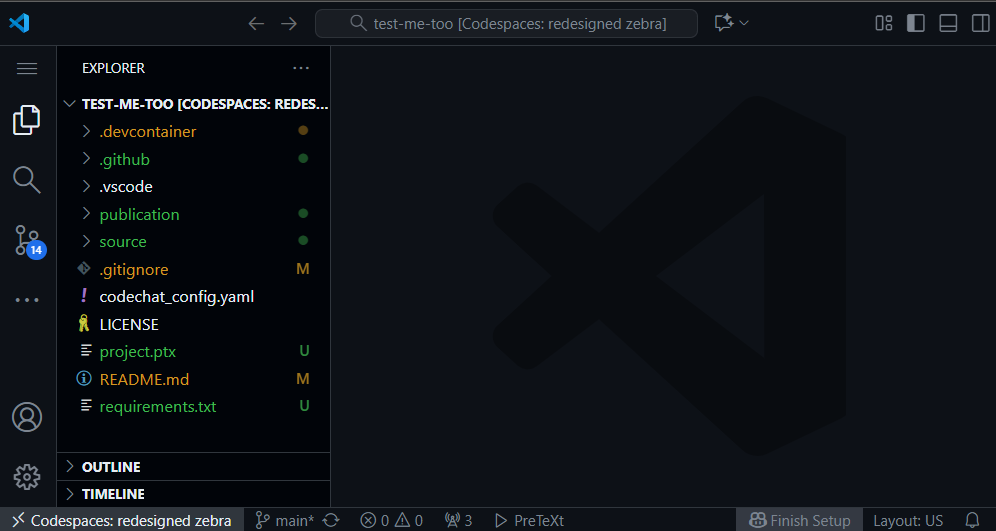
A quick tour of what you just created.
-
source/ -
Your PreTeXt source files live here. Look for
main.ptx(the entry point) and at least one chapter file. -
assets/ -
Images, data files, and any other supporting materials go here. PreTeXt will include them automatically when you reference them in your source.
-
output/ -
Generated files (HTML, PDF) land here when you build. You never edit this directly. It will appear after your first build.
-
project.ptx -
The project manifest. It tells PreTeXt which output formats to produce and where to put them.
-
publication.ptx -
Settings that control the look and feel of your output: theme, numbering depth, and similar cosmetic knobs.
If you get stuck: pretext new doesn’t appear in the palette.
The PreTeXt extension may still be loading, especially right after the Codespace finishes setup. Wait a minute, then open the command palette again and retry. If the command still isn’t there, close the Codespace tab and reopen it from < > Code → Codespaces on your repository page.

